


The cryptocurrency revolution is largely down to enthusiastic ‘miners’, who build or use their own machines to perform the complex proof of work algorithms to process data blocks, creating more of their chosen currency such as Bitcoin and Ethereum.
Specialized mining equipment is available online and you can even rent processing power from companies such as Genesis Mining (we’ve got a guide on how to do this here).
However, if your home computer is powerful enough there’s no reason you can’t get started mining Ethereum today. In this guide, you’ll learn how to use the friendly MinerGate client. This handy program quickly and easily connects you to MinerGate’s mining pool from where you can share some of your machine’s resources, and then subsequently share in the rewards of generating Ether.
Before you begin, remember that the actual amount of hard cash you’ll make from doing this will vary depending on the mining difficulty, the fluctuating price of Ether and how powerful your hardware is. MinerGate has a built-in benchmarking tool to give you a rough idea how much you stand to make per year, although this doesn’t take into account the electricity used by your machine.
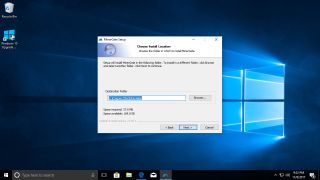
1. Download MinerGate client
Open your browser and navigate to https://minergate.com. Click on the button marked ‘Download Miner & Start Mining’. If you’re using Microsoft Edge, you can click ‘Run’ to launch the installer at this stage. Windows 10 will ask you to confirm that you wish to allow MinerGate to make changes to your system. Click ‘Yes’.
Setup will now launch. Close down any other open apps and agree to the license agreement. On the next screen (Install Options), select ‘Add MinerGate to the system PATH for current user’ as well as ‘Create MinerGate Desktop Icon’. Click ‘Next’, then ‘Install’.
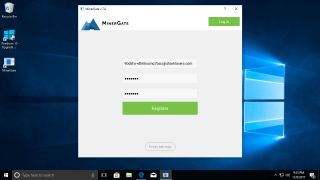
2. Launch MinerGate
Once MinerGate has finished setup, it will place a shortcut on your desktop. Click ‘Finish’ to launch the program automatically. Once MinerGate launches click ‘Create Account’ at the top right. Enter both your email address and password. Make a note of both of these as you’ll need them to be able to access any mined funds. Next click ‘Register’.
MinerGate will display a message to say that ‘smart mining’ has been activated. The MinerGate Mining Pool will automatically try to use your computer’s resources to mine cryptocurrency in the most profitable way.
3. Benchmark your PC
Your machine’s success at mining coins will be determined by the hashrate afforded by its processor and GPU(s). If you’re unsure whether your machine is powerful enough to mine cryptocurrency at all, click on ‘Benchmark’ in the top bar, then on ‘Start Benchmark’.
MinerGate will automatically test your computer’s ability to mine various types of coins and provide you with an overall score. Dedicated miners usually buy custom equipment specifically for mining cryptocurrencies like Ethereum. The next most profitable way to mine is to own a machine with multiple graphics cards as these can mine Ether much more efficiently than a plain old CPU.
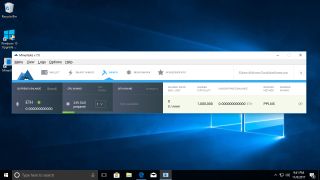
4. Start mining
Click on the ‘Miner’ tab at the top of the screen. From here you can choose a specific cryptocurrency to mine such as Ether rather than have MinerGate choose for you. Click on ‘Start Mining’ next to ETH. MinerGate will congratulate you on mining “like a man” by doing it manually.
Click on the ‘View’ menu to deselect other cryptocurrencies, until only ETH remains. MinerGate will notify you that it’s loading a DAG (Dagger Hashimoto) file. This is around 1GB in size and represents the proof of work algorithms necessary to mine Ethereum data blocks. If you want to understand this further, see the Ethereum Github page for more information.
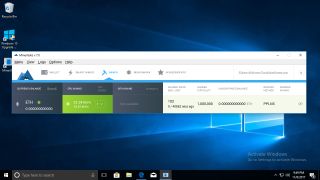
5. What the numbers mean
Once you’ve started mining, you may want to have some understanding of your progress. Click on the ‘Miner’ tab to view your currency balance. This represents all the Ether you have mined to date.
The CPU Mining and GPU Mining sections display your current hashrate. Use the dropdown menu in each section to choose the number of CPUs/GPUs you wish to dedicate to mining (assuming you have more than one).
The Shares section relates to how the work is divided by different machines in the mining pool to ensure everyone receives a fair reward in line with work done by their machine. See the Bitcoin wiki for more information on this.
The unconfirmed balance represents the amount of mined Ether which is waiting for confirmation from MinerGate’s servers. This will ultimately be added to your wallet balance.


